
Congratulations! You've installed Windows Server. But a fresh installation is just the beginning. Before you deploy roles or put the server into production, there are critical configuration steps you must take to ensure security, stability, and manageability.
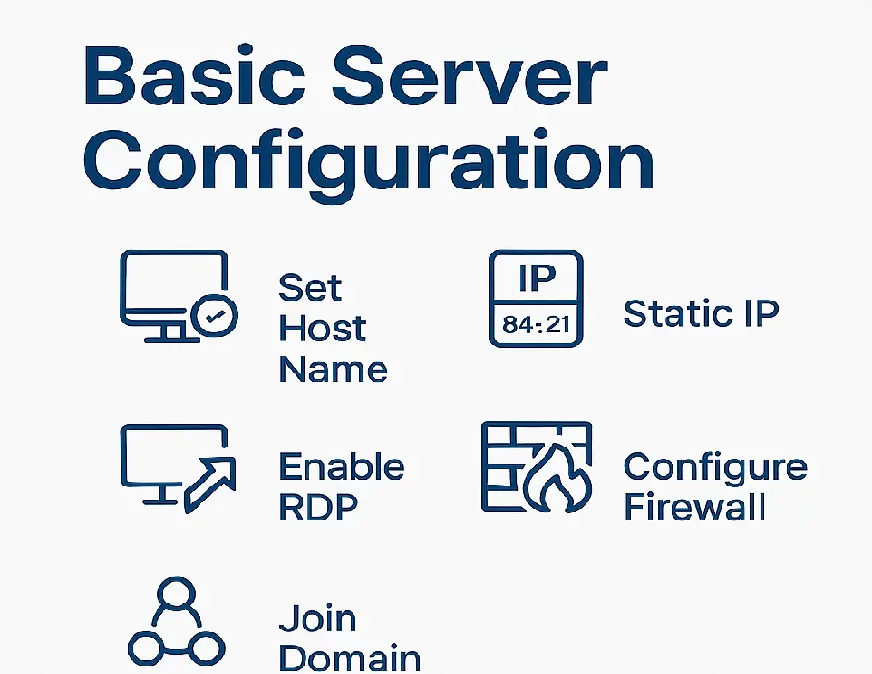
1. Run Windows Updates
The very first step is to patch the OS. Even a "fresh" ISO might be months old.
- Open Settings > Update & Security.
- Click Check for updates.
- Install all available patches and restart as needed.
Why? Unpatched servers are vulnerable to exploits from day one.
2. Configure a Static IP Address
Servers should never rely on DHCP for their primary IP address. They need a fixed address so clients and other servers can reliably find them.
- Go to Network Connections (ncpa.cpl).
- Right-click your adapter > Properties.
- Select IPv4 and enter your static IP, Subnet Mask, Gateway, and DNS servers.
3. Rename the Server
Default names like WIN-837492... are impossible to manage. Give your server a descriptive name that follows your organization's naming convention (e.g., NYC-WEB-01).
Change this in Server Manager > Local Server > Computer Name. A reboot is required.
4. Configure Time Zone
Accurate time is crucial for logs, authentication (Kerberos), and backups. Ensure the time zone is correct, or configure the server to sync with an NTP server.
5. Enable Remote Desktop (RDP)
To manage the server without standing in front of it, enable RDP.
- Go to Server Manager > Local Server.
- Click on Remote Desktop and select "Allow remote connections to this computer".
- Security Tip: Only allow connections from computers running Remote Desktop with Network Level Authentication (NLA).
6. Configure Windows Firewall
Never turn off the firewall! Instead, allow only the ports you need. For a web server, allow port 80/443. For a file server, allow SMB.
Use Windows Defender Firewall with Advanced Security to create granular inbound/outbound rules.
Conclusion
These basic steps create a solid baseline for any Windows Server deployment. Once these are complete, you can proceed to install roles like Active Directory, IIS, or Hyper-V with confidence that the underlying OS is secure and ready.